Tutorial 3 of 8
Activities, reminders and timelines
Beginner 6 min
Log calls, plan meetings, add tasks and notes with due dates, let Rapport remind you in the app and follow each contact, company and deal on its timeline.
Activities are what you do to move a relationship forward. Rapport knows five kinds:
- Call — a phone or video call
- Meeting — in person or online, often with a time
- Task — something to do by a date, such as “send the revised proposal”
- Note — something worth remembering; notes have no due date and count as done
- E-mail — logged automatically when you write from a template (see E-mail templates, segments and custom fields)
Each activity can belong to a contact, a company and a deal at the same time, so it shows up on all three timelines.
Add an activity
The quickest way is from a record: open a contact, company or deal and use Log a call, Plan a meeting, Add a task or Add a note in its side panel. The new activity is already linked to that record. From anywhere else, press N in the Activities view or choose New → New activity….
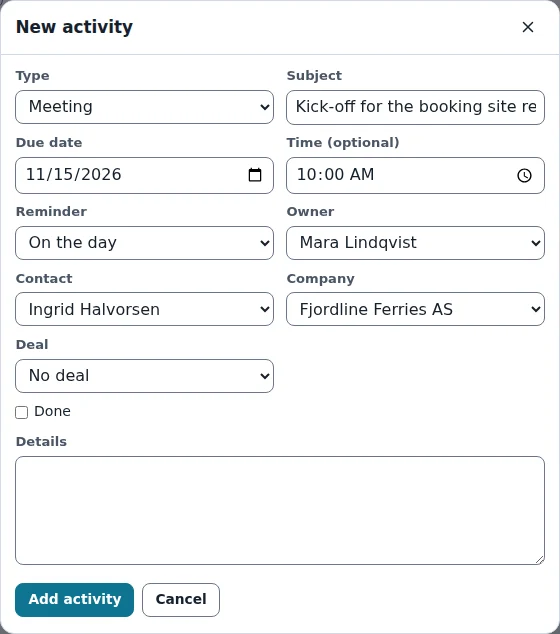
Fill in the Subject, a Due date and, if it matters, a Time. The Reminder decides when Rapport starts reminding you: on the day, at the time, 15 minutes, 1 hour or 1 day before. Details takes longer text, for example the minutes of a meeting.
The Activities view
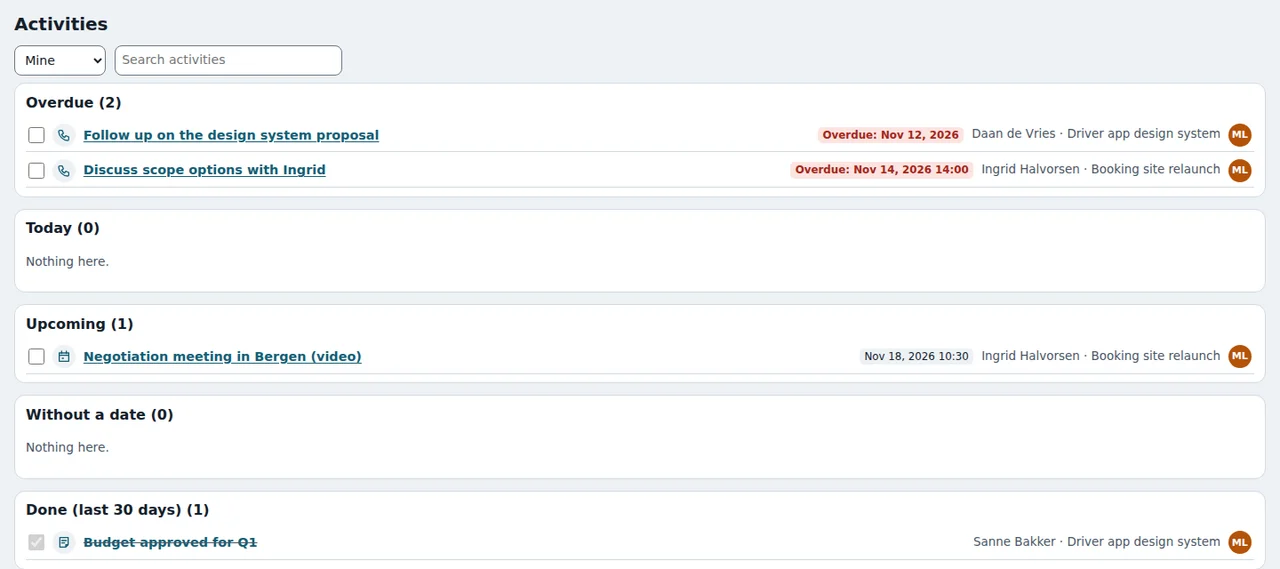
The Activities view sorts everything into groups: Overdue, Today, Upcoming, Without a date and Done (last 30 days). Switch between Mine and Everyone at the top. Tick the box in front of an activity to mark it done — done calls, meetings and e-mails update the contact's last contact date.
Who “Mine” means depends on who you are: CRM → Who are you?… picks your name from the people of the CRM (CRM → People… manages that list). In a shared CRM Rapport knows you from your account.
Reminders
The bell next to New shows how many activities are due (in a shared CRM only yours). Click it to see them in a list and open any of them. While Rapport is open it also announces newly due reminders in the status bar. Rapport has no calendar sync and sends no push messages — reminders appear inside the app only, so keep the tab open on busy days or export your activities with File → Export… → Activities as CSV.
Timelines
Every record shows a Timeline at the bottom of its side panel, newest first:
- activities (open ones are marked “open”)
- for deals: every stage change, so you see how long the deal sat in each stage
- quotes made for the deal or the customer
- when the record was created
Click an entry to open it. Company timelines include the activities of all their contacts, so you see the whole relationship at a glance.
Keyboard tips
J and K move between rows and cards, Enter opens the focused one, / jumps to the search box and ? lists all shortcuts. If single-key shortcuts get in your way (for example with a screen reader), switch them off in the Keyboard shortcuts dialog.
Next: Products, quotes and VAT.
Ready to try it?