Tutorial 5 of 8
E-mail templates, segments and custom fields
Intermediate 7 min
Write e-mails from templates with merge fields and open them in your own mail program, save filters as segments, tag records in bulk and add your own fields to contacts, companies and deals.
Three tools make Rapport fit the way you sell: e-mail templates for the messages you write again and again, segments for the groups of people you work with, and custom fields for the facts only your business needs.
E-mail templates with merge fields
CRM → E-mail templates… lists your templates. Each has a name, a subject and a text with merge fields in double curly braces:
Hi {{contact.firstName}},

thanks for your time today. As promised, here is the proposal for {{deal.title}}.

Best regards
{{me.name}}
The available fields are listed below each template: the contact's name, e-mail and job title, the company's name and domain, the deal's title, value, stage and expected close date, your own name and e-mail and today's date.
To write, open a contact (or a deal) and choose Write from a template…. Pick the Template and the recipient under To; Rapport fills in the fields and shows which ones had no value, such as a missing job title. Edit the text freely, then:
- Open in mail program — opens a new message in your own e-mail program with recipient, subject and text filled in.
- Copy text — copies subject and text for webmail or a chat.
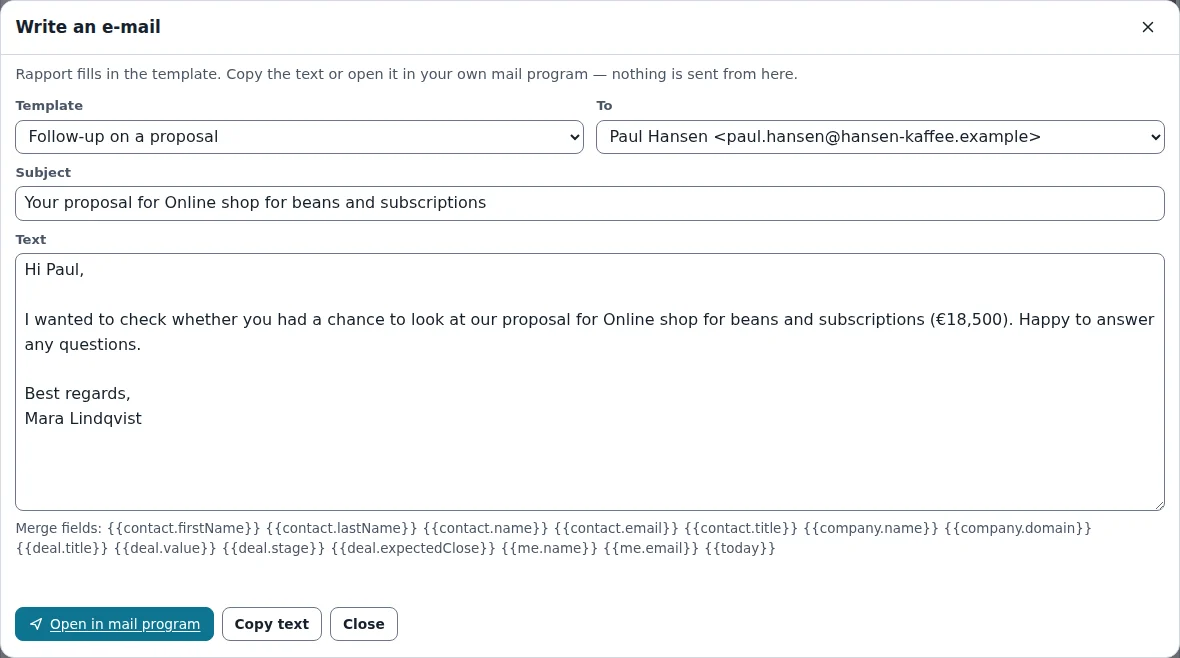
Rapport never sends e-mails itself — nothing goes through our server. When you open or copy a message, Rapport logs it as a done E-mail activity on the contact's timeline.
Segments
A segment is a saved filter. The Segments view lists them with the number of matching records; Show opens the list view with the segment applied, and every list view has a segment menu next to its search box.
Choose New segment (or Edit on an existing one) to build one: a Name, which Records it filters (contacts, companies or deals), whether All rules match or Any rule matches, and the rules themselves — a field, a condition and a value. Conditions include is, contains, is empty, is more than, is before, has the tag and within days (a negative number means the coming days, so -30 on Expected close finds deals closing in the next 30 days). The count updates while you type.
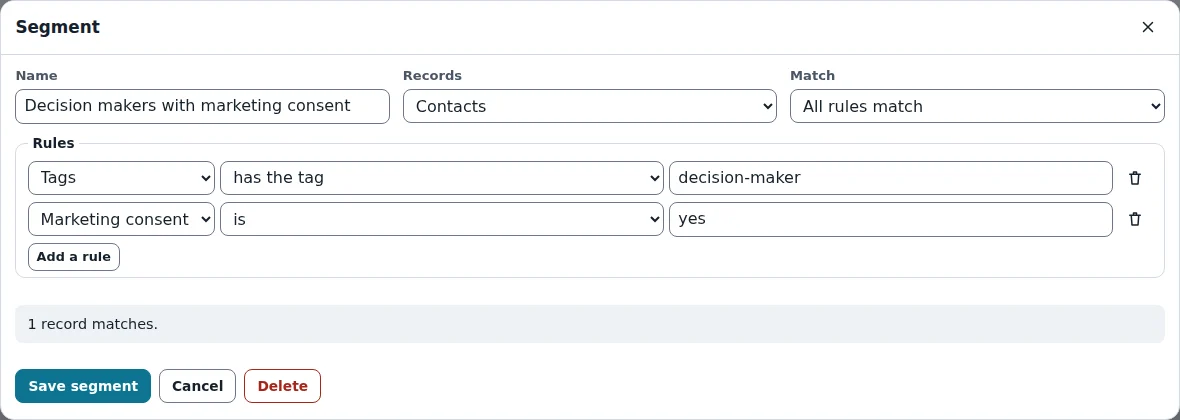
Good segments to start with: decision makers with marketing consent, enterprise accounts, deals closing this month, contacts without a lawful basis.
Bulk actions
In the Contacts table, tick the boxes in front of the rows (or Select all shown contacts after filtering). A bar appears with Add a tag…, Write an e-mail… and Export as vCard for the selected people. With several people selected, the e-mail dialog fills the template for whoever you pick under To, so you can go through them one by one.
Custom fields
CRM → Custom fields… adds fields to contacts, companies or deals. Give the field a name, choose who it is For and its Type:
- Text, Number or Date
- Choice with a list of options, such as Referral, Website, Event, Outbound for a lead source
- Yes/no for things like “newsletter”
New fields appear in the record forms, in segment rules and as extra columns of the CSV export. Deleting a field removes it from the forms and the filters.
Ready to try it?