Tutorial 6 of 8
Import, export and duplicates
Intermediate 8 min
Move from HubSpot, Pipedrive or a spreadsheet with CSV column mapping, import vCards from your phone, find and merge duplicate contacts and companies, and export everything again.
Most CRMs start with data that lives somewhere else: a spreadsheet, a phone's address book or another CRM. Rapport imports all of it and helps you clean it up afterwards.
Import a CSV file
Choose File → Import CSV…. First pick what the rows are under Import as: Contacts, Companies or Deals. Then choose the CSV file — or paste the text into the box below it.
Rapport reads the header row and guesses the Column mapping. It knows its own export, the column names of HubSpot's contact and company exports (First Name, Email, Company Name, Contact owner, Legal basis for processing contact's data …) and of Pipedrive's deal export (Deal - Title, Deal - Value, Deal - Stage, Deal - Status, Deal - Expected close date …), plus common English and German names. Check every field: each dropdown lists the columns of your file, and — not imported — skips a field. The Preview shows the first rows exactly as they are in the file.
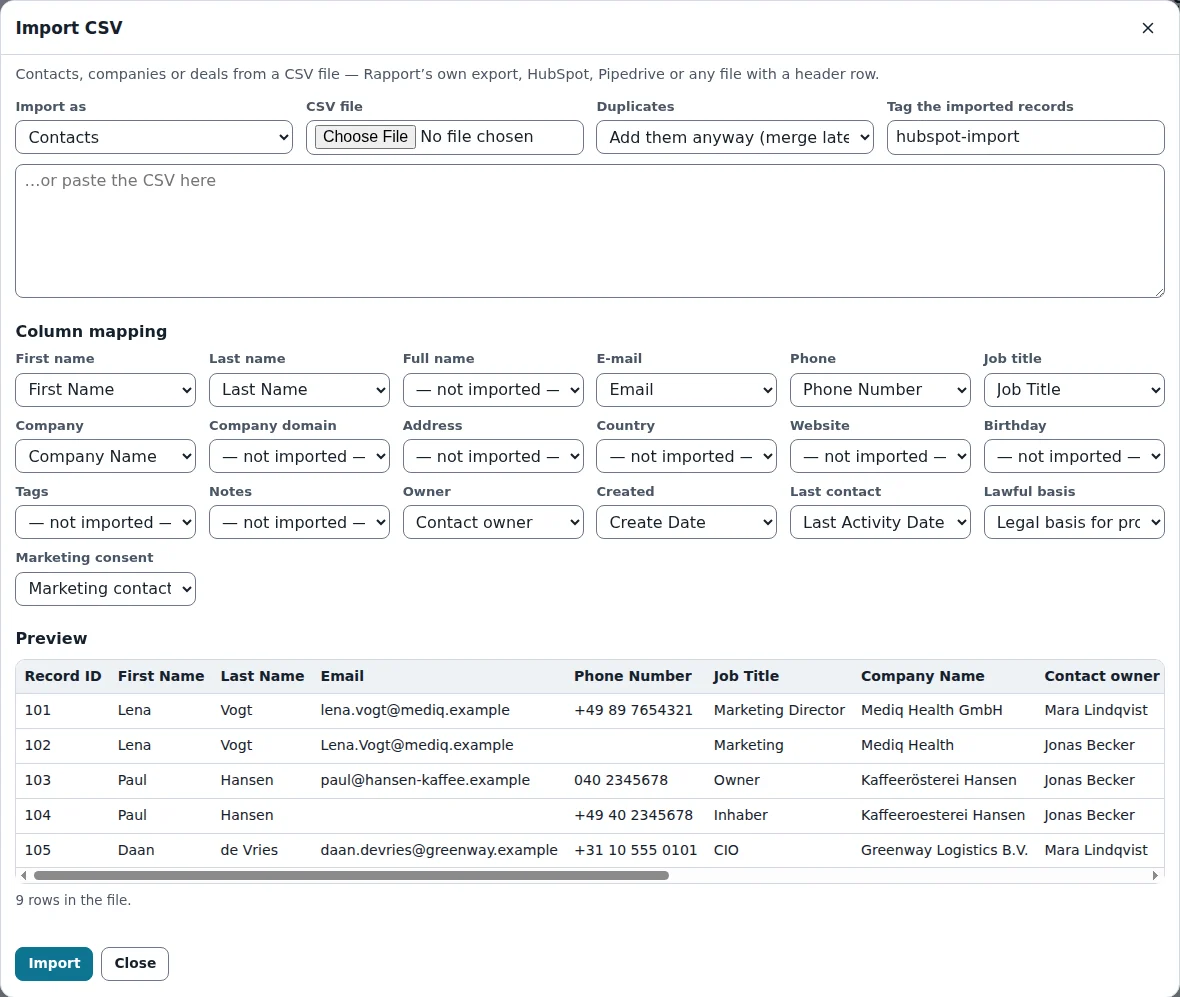
Two more choices before Import:
- Duplicates — Skip duplicates leaves existing contacts alone, Fill empty fields of the existing record completes them, Add them anyway (merge later) imports everything and leaves the clean-up to the duplicate finder.
- Tag the imported records — a tag such as
hubspot-importmakes the new records easy to find, check and, if needed, delete again.
Companies named in a contact or deal row are created when they do not exist yet. Deals land in the stage whose name matches; won and lost deals keep their close date and lost reason, so your win rate and sales cycle are right from day one. The result line reports how many records were added, updated and skipped, with a warning for each row that needed attention.
Import vCards
File → Import vCards… reads .vcf files in vCard 2.1, 3.0 and 4.0 — what phones, Outlook, Apple Contacts and Google Contacts export. Names, organisation, job title, e-mails, phones, addresses, birthday, website, categories (as tags) and notes come along; folded lines and old quoted-printable umlauts are decoded. The same duplicate choices apply.
Find and merge duplicates
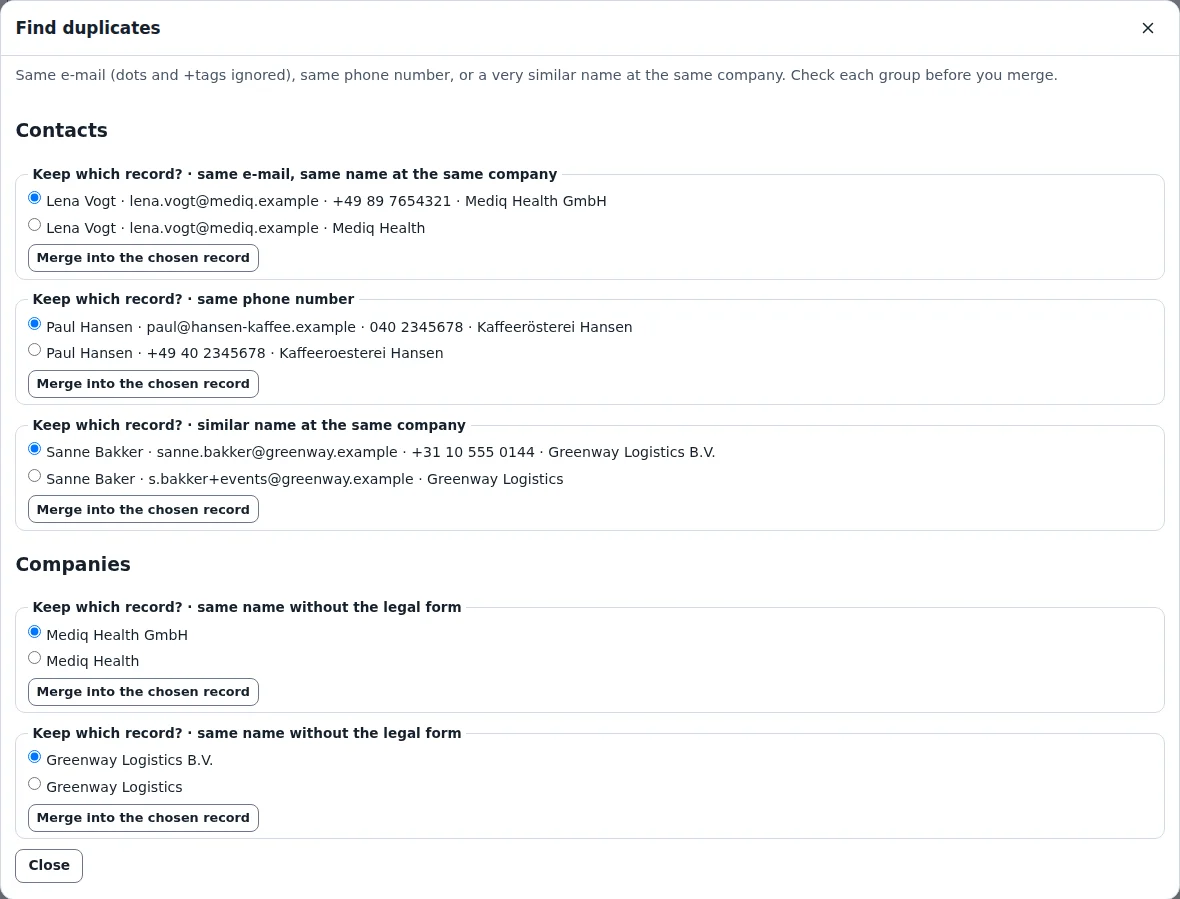
Edit → Find duplicates… groups records that are probably the same:
- the same e-mail (Rapport ignores capital letters and
+tags, and dots in Gmail addresses) - the same phone number in different spellings (
040 2345678and+49 40 2345678) - a very similar name at the same company (Sanne Bakker and Sanne Baker)
- for companies, the same domain or the same name without the legal form (Mediq Health and Mediq Health GmbH)
Each group says why it matched. Choose which record to keep under Keep which record? and click Merge into the chosen record. Empty fields of the kept record are filled from the others, tags and notes are combined, the newest documented consent wins, and every deal, activity, quote and relationship moves over. Undo brings the separate records back.
The same matching runs without the app in the tool rapport-csv-dedupe, which takes a contacts CSV and returns the duplicate groups and a cleaned file.
Export
File → Export… downloads contacts, companies, deals or activities as CSV (UTF-8 with the names of the import, so a round trip works; cells that start with =, +, - or @ are protected against spreadsheet formulas), all contacts as one .vcf file, the whole CRM as a .rapport.json file, or a share link that holds the CRM in the address itself. In the Contacts table you can also export only the selected people as vCards — handy for putting a customer's team into your phone.
Next: Privacy and the GDPR helpers.
Ready to try it?